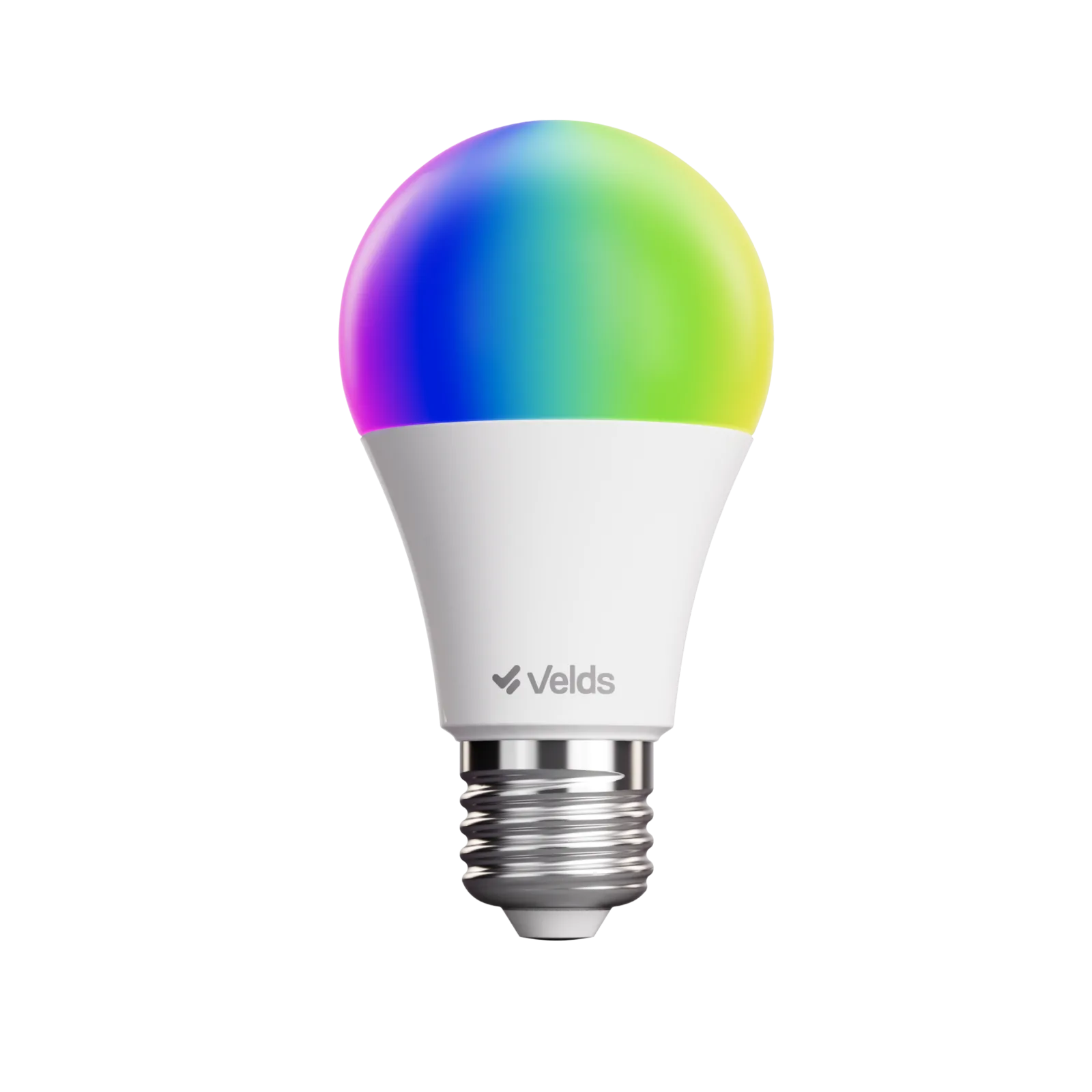
Manual · Smart Bulb
VDS L9WA60BW
1. General information
In the box
- VDS L9WA60BW RGB Smart Bulb
- Quick Start Guide
Technical specifications
Model
VDS L9WA60BW
Connectivity
Wi-Fi 2.4 GHz + Bluetooth LE
Power input
100-240 V AC · 50/60 Hz
Power
9 W
Luminous flux
800 lumens
Colors
RGB + tunable white (CCT)
Bulb type
A60 · E27 base
Beam angle
220°
Weight
38 g
Dimensions
112 × 60 × 60 mm
Supported platforms
Android · iOS
Reset
- Reset procedure: toggle the wall switch on/off five times (with a 1-second interval between cycles). On the fifth toggle, the bulb will display its default color and blink to enter pairing mode.
2. The device
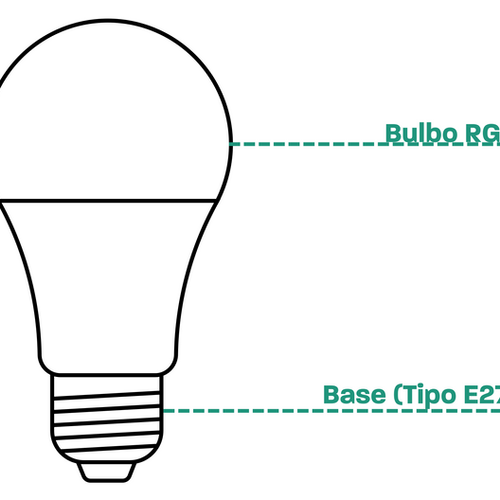
LED status
Blinking (default color)
Pairing / configuration mode
Off
No power or wall switch off
Normal operation
Color and brightness as set in the app
3. Before installing
- Turn off power to the fixture before installation.
- Compatible with E27 sockets only.
- Keep the bulb away from metal surfaces, microwave ovens and furniture.
- Position it close to your Wi-Fi access point.
- Use the reset procedure to change Wi-Fi networks.
Safety precautions
Read the operating instructions and safety precautions before use to avoid accidents.
- Install according to the steps in section 4 of this manual.
- Keep the device away from water, fire, high electric or magnetic fields, and flammable or explosive items.
- Do not use the device if the base or wiring is damaged.
- If you notice smoke, unusual sound or smell during use, stop using the device immediately and cut power.
- Disassembling or modifying the device or its accessories without authorization will void the warranty and may cause safety risks.
4. Installing the device
- Confirm the power is off at the wall switch.
- Remove the previous bulb, if any.
- Screw the VDS L9WA60BW into the E27 socket.
- Make sure it is fully seated.
- Turn the wall switch on to test.
5. App installation
Download the app:
Register and log in: open the app and create a new account or sign in with an existing one.
6. Adding the device
- Make sure your router has 2.4 GHz Wi-Fi enabled with internet access.
- Turn on the device and wait for the LED to blink.
- Open the Velds app.
- Tap the "+" symbol and select "Add device".
- If the device appears at the top of the list, tap it. Otherwise, select the "Lighting" category and choose "Smart Bulb (VDS L9WA60BW)".
- Enter your 2.4 GHz network credentials and tap "Next".
- Follow the on-screen instructions if prompted.
- Wait for the connection and account association to complete.
- Rename the device, assign it to a room and tap "Done".
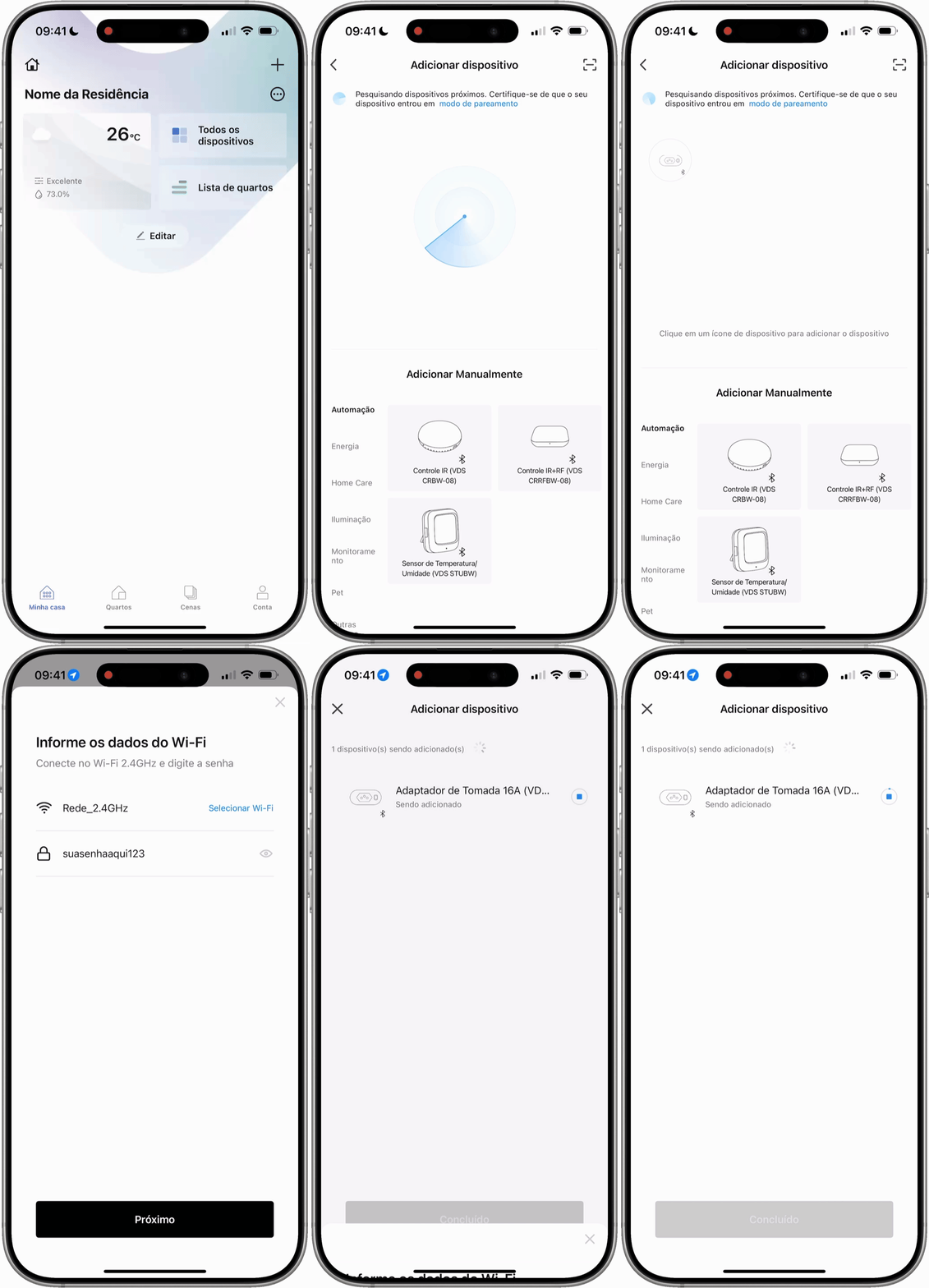 Animation — pairing process in the Velds app
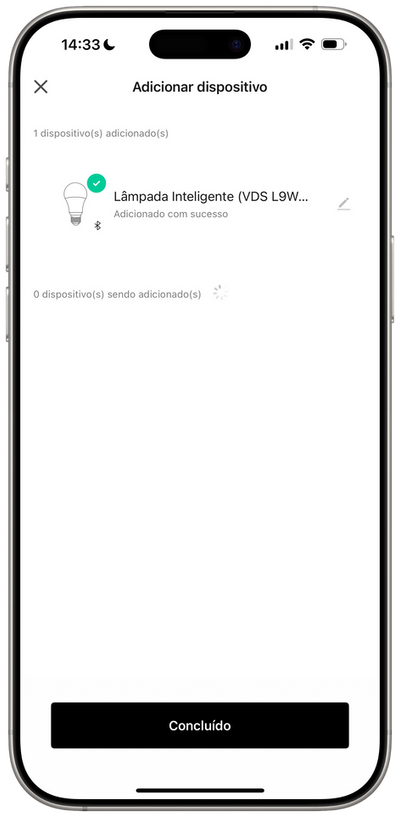 App screen — add device
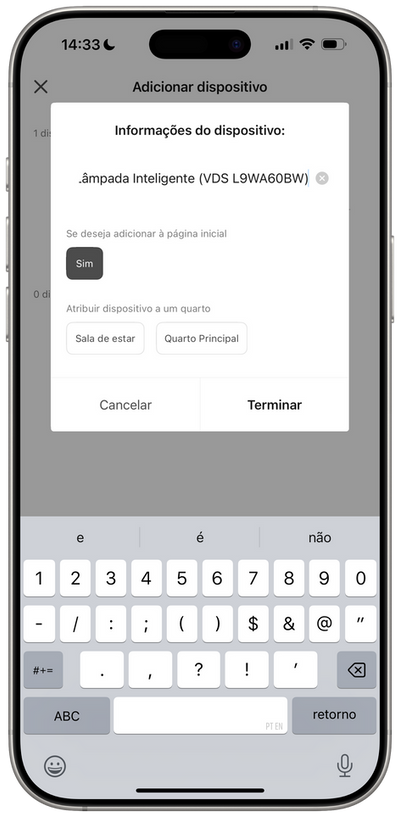 App screen — confirm pairing
7. In-app view
Review the options available in the app view.
8. Frequently asked questions
Visit the Velds Help Center for FAQs about this product.
9. Terms and Policies
Last update: 08/2026 · Version: 1.1